Tesla makes waiting in your car much more enjoyable, especially when you can stream shows on the center screen while parked. If you are charging, waiting for someone, or taking a break on a road trip, Netflix can turn downtime into something useful and relaxing.
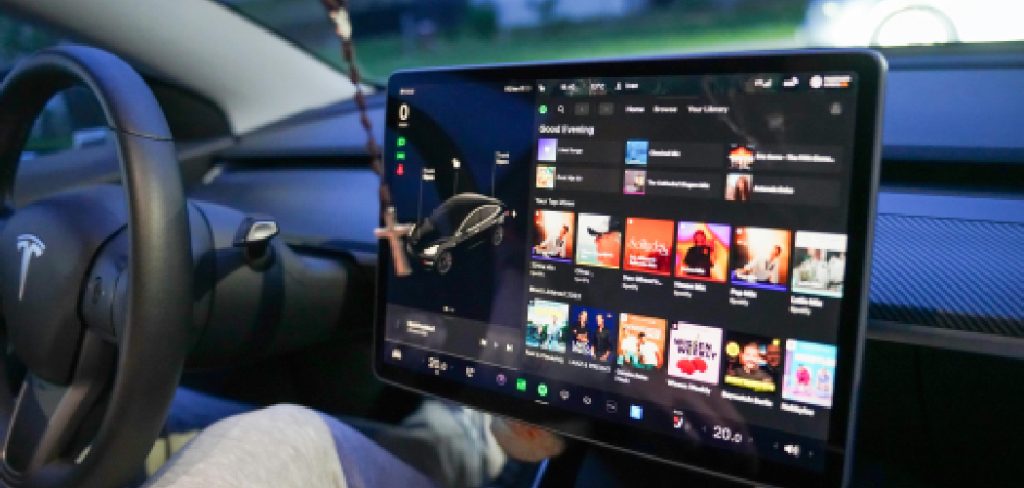
This guide explains how to get netflix on tesla in a simple, beginner-friendly way. You will learn where to find Tesla Theater, what connection you need, how premium connectivity works, how to sign in, and what to do if Netflix does not load properly.
The key thing to know is that Netflix is designed for parked use only. Tesla blocks video streaming while driving for safety. Once your car is safely parked, the touchscreen can work like an entertainment hub, giving you access to streaming apps, your account, and playback controls with just a few taps.
Why Watching Netflix In A Tesla Matters
Watching Netflix in a Tesla matters because it makes idle time more comfortable. Charging stops, school pickups, ferry waits, and road trip breaks can feel shorter when you have easy access to entertainment.
Tesla Theater also adds value to the ownership experience. Instead of using a small phone screen, you can enjoy streaming on the vehicle’s large touchscreen with built-in speakers. For passengers, it can make long stops less boring.
It also helps you use your car’s technology better. Knowing how wi-fi, premium connectivity, software updates, and app availability work can prevent common issues. Once everything is set up, Netflix becomes a convenient feature you can use whenever the vehicle is parked safely.
Step-By-Step Guide To How To Get Netflix On Tesla
Step 1: Park The Vehicle Safely
Before opening any streaming app, make sure your Tesla is fully parked. Netflix and other Tesla Theater apps do not play video while the vehicle is moving. This is a safety feature, not a setting you can turn off.
Shift into park and choose a safe place where you are allowed to stop. A charging stall, driveway, parking lot, or rest area is ideal. Avoid trying to start playback at traffic lights or in temporary stops.
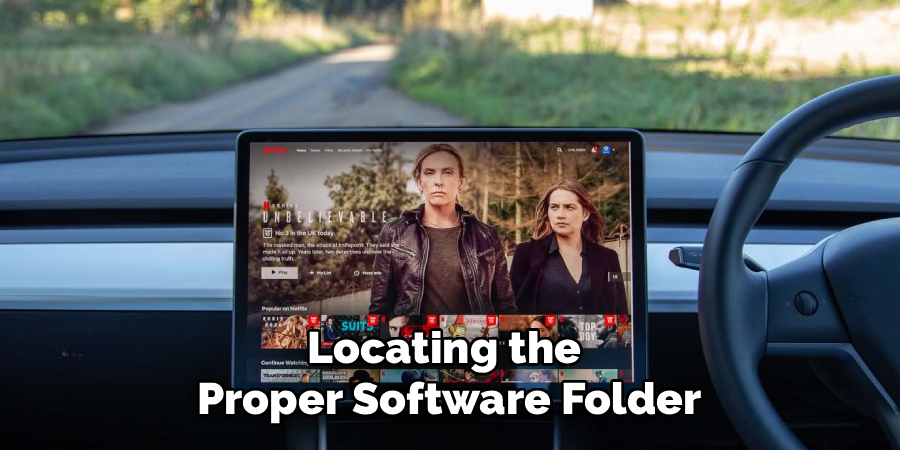
This is the first step in how to get netflix on tesla because the app will only work when the car confirms it is not being driven.
Step 2: Check Your Internet Connection
Netflix needs an active internet connection to load shows and movies. Your Tesla can connect through premium connectivity, wi-fi, or a phone hotspot, depending on your vehicle settings and subscription status.
Premium connectivity is the most convenient option because it allows streaming through the car’s built-in cellular connection in supported areas. If you do not have it, connect the car to wi-fi at home, a public network, or your phone’s hotspot.
A weak signal can cause slow loading, poor playback quality, or sign-in errors. If Netflix keeps buffering, move closer to a stronger network or switch connection sources.
Step 3: Open The Entertainment Menu
Use the touchscreen to open the entertainment area. Depending on your Tesla software version, you may see it listed as Theater, Entertainment, or an app launcher section. Tesla updates the interface over time, so the exact icon location can vary.
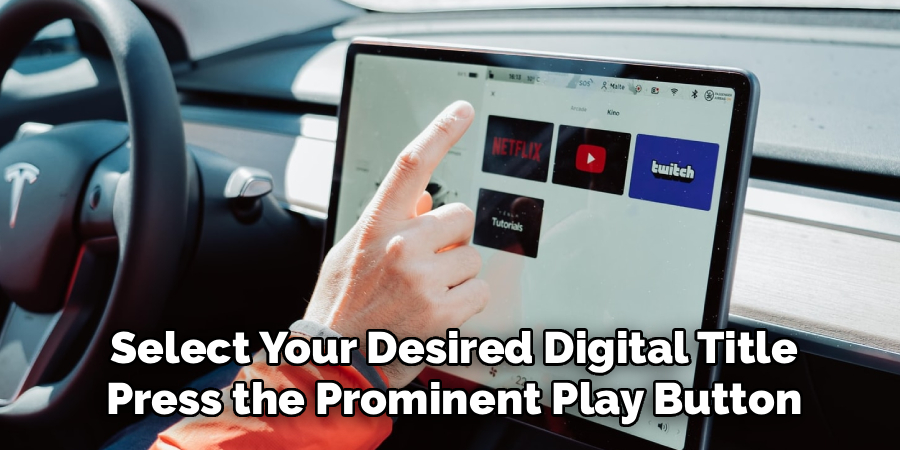
Look for Tesla Theater because that is where video streaming apps are usually grouped. You may see Netflix alongside other services, depending on your region and app availability.
If you do not see it right away, take a moment to browse the app menu. The Tesla touchscreen is simple, but software layouts can change after updates.
Step 4: Select The Netflix App
Once you are in Tesla Theater, tap the Netflix icon. The app should open directly on the touchscreen. If it loads correctly, you will see the Netflix welcome screen, sign-in page, or account selection screen.
If the app takes a while to open, wait a moment before tapping repeatedly. Streaming apps can load slowly when the signal is weak or after a recent software update.
If Netflix does not appear, your vehicle may need updated software, a better connection, or regional app support. App availability can differ by location, vehicle model, and Tesla software version.
Step 5: Sign In To Your Account
After Netflix opens, sign in using your account email and password. If you use a shared family account, choose the profile you want after logging in. Your Tesla does not create a separate Netflix subscription, so you need an active account.
Use the on-screen keyboard carefully, especially when entering a long password. If sign in fails, check your login details on another device first. This helps confirm whether the issue is with the account or the car.
For privacy, avoid saving account access in situations where other people regularly use your vehicle.
Step 6: Adjust Audio And Playback Settings
After you sign in, choose a show or movie and test playback. The video should appear on the touchscreen, and audio should play through the car’s speakers. Adjust the volume using the steering wheel controls or touchscreen, depending on your preference.
If playback looks blurry at first, give the app time to improve quality. Streaming services often start at a lower resolution and adjust based on connection speed.
This part of how to get netflix on tesla is about comfort. Set the climate, volume, screen brightness, and seat position before settling in for a longer charging stop or break.
Step 7: Update The Tesla Software If Needed
If Netflix is missing, freezing, or not working correctly, check for a software update. Tesla often improves app performance, touchscreen behavior, browser functions, and entertainment features through over-the-air updates.
Open the software section in your vehicle settings and see whether an update is available. If one appears, connect to wi-fi and install it when convenient. Some updates take time, so avoid starting one when you need to drive soon.
After the update finishes, restart the app and check Tesla Theater again. Many app issues improve after the car is running the latest software.
Step 8: Use The Browser Or Hotspot If Problems Continue
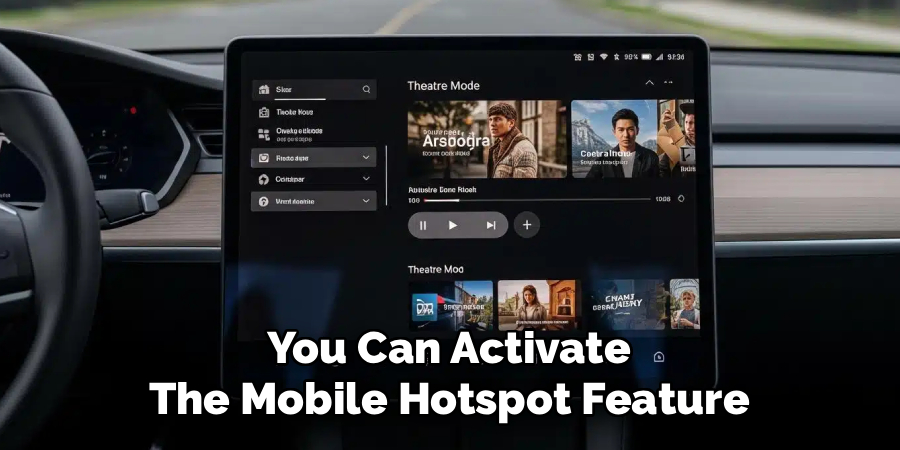
If the Netflix app still does not work, confirm that your internet connection is stable. Try switching from premium connectivity to wi-fi or from wi-fi to a phone hotspot. A different connection can fix loading problems caused by weak coverage or network restrictions.
You can also open the Tesla browser to test whether web pages load. If the browser does not work, the issue is likely the connection rather than Netflix itself.
If the browser works but Netflix does not, restart the touchscreen and try again. A simple reboot can clear temporary glitches without changing your settings.
Frequently Asked Questions
Can I Watch Netflix While Driving A Tesla?
No, Tesla does not allow Netflix video playback while driving. The car must be parked before Tesla Theater apps will play video. This safety limit helps prevent driver distraction and cannot be bypassed through normal settings. Passengers can use other devices while the car is moving, but the Tesla touchscreen will not stream Netflix video on the road.
Do I Need Premium Connectivity For Netflix?
Premium connectivity is not always required, but it makes streaming easier. With premium connectivity, your Tesla can use its built-in cellular data for supported streaming services. Without it, you can still use Netflix by connecting the car to wi-fi or a phone hotspot. The best option depends on your signal strength, data plan, and where you usually park or charge.
Why Is Netflix Not Showing In Tesla Theater?
Netflix may not show because of software version, region, app availability, or connection issues. Start by checking for a software update and confirming that the car has internet access. Some features can vary by market, so availability is not always identical everywhere. If other Theater apps appear but Netflix does not, the issue may relate to your location or current Tesla software.
Why Does Netflix Keep Buffering In My Tesla?
Buffering usually means the internet connection is too weak or unstable. Try moving the vehicle closer to wi-fi, using a phone hotspot, or switching to premium connectivity if available. Streaming quality can also drop in crowded areas where cellular networks are busy. If the signal is strong but playback still fails, restart the app or reboot the touchscreen.
Can I Use My Phone Hotspot For Tesla Netflix?
Yes, you can use your phone hotspot if your Tesla connects to it through wi-fi. Turn on the hotspot on your phone, then connect your Tesla to that network from the wi-fi settings. Keep in mind that streaming uses a lot of data, so check your mobile plan. A strong hotspot can work well when premium connectivity is unavailable.
Conclusion
Netflix is one of the most useful entertainment features in a Tesla when you are parked, charging, or waiting. The setup is simple: park safely, connect to the internet, open Tesla Theater, choose Netflix, sign in, and start playback.
If the app does not work, check your wi-fi, hotspot, premium connectivity, software update status, and touchscreen behavior before assuming something is wrong with the car. With the right connection and an active account, how to get netflix on tesla becomes a quick process that makes your parked time much more enjoyable.

About
Ora Hayes is a distinguished figure in the world of DIY Thecarfixes, with over a decade of expertise in automotive diagnostics and high-performance maintenance. Her professional focus lies in merging mechanical precision with modern digital tools, fostering repair solutions that are both cost-effective and highly reliable. As the author of Thecarfixes, Ora Hayes delves into the art and science of automotive restoration, inspiring car owners and hobbyist mechanics alike.
Education
RMIT University (Melbourne, Australia) Associate Degree in Automotive Engineering — Focus on vehicle dynamics, industry-driven repair protocols, and advanced diagnostics. Gained hands-on experience with traditional mechanical tools and modern ECU remapping software.
Nottingham Trent University (United Kingdom) Bachelor’s in Mechanical Design and Automotive Engineering (Honors) — Specialized in automotive systems with a focus on blending technical engineering with everyday usability. Participated in industry projects, working with leading automotive manufacturers to gain real-world insights into vehicle longevity.
Publications and Impact
In Thecarfixes, Ora Hayes shares her insights on troubleshooting complex engine issues, material durability, and strategies for efficient garage setups. Her writing bridges the gap between professional mechanic knowledge and the home enthusiast’s needs, making it a must-read for both everyday drivers and seasoned gearheads.