Learning how to change time audi a4 is useful for every Audi owner, especially after a battery reset, daylight saving time change, or a trip across time zones. The Audi A4 has a clean dashboard display and a smart infotainment system, but the clock settings can feel confusing if you are new to the MMI system. The good news is that the process is simple once you know where to look.

In this guide, you will learn how to adjust the time using the vehicle menu, center console controls, infotainment screen, and date and time settings. The steps are beginner-friendly and apply to many Audi A4 model years, though small menu names may vary.
Why Changing The Time On An Audi A4 Matters
Keeping the correct time in your Audi A4 helps more than you might think. The dashboard display, navigation system, trip information, service reminders, and digital display all work better when the clock is accurate. If the time is wrong, you may notice confusing arrival estimates, incorrect logged trip times, or mismatched settings after daylight saving time.
Many Audi A4 models can update the time automatically, but this depends on the model year, MMI version, GPS signal, and regional settings. In some cases, you may need a manual adjustment through the settings menu. Knowing how the clock works saves time and helps you feel more confident using your car’s technology.
Step-By-Step Guide: How To Change Time Audi A4
Step 1: Turn On The Audi A4 Ignition
Start by sitting in the driver’s seat and turning on the ignition. You do not always need to start the engine, but the infotainment screen and dashboard display must be powered on. In many Audi A4 models, pressing the start button without pressing the brake may activate accessory mode.

Wait a few seconds for the MMI system to load fully. If the screen is still starting up, some menu options may not appear right away. Once the display is ready, check the current clock on the instrument cluster or infotainment screen so you know what needs to be changed.
Step 2: Locate The MMI Controls Or Touchscreen
Next, find the controls used to operate your Audi A4 infotainment system. Depending on the model year, your car may use a control knob on the center console, shortcut buttons near the gear selector, steering wheel controls, or a touchscreen. Newer models often rely more on the infotainment screen, while older models use the MMI control knob.
Take a moment to understand how your system responds before changing settings. Turn the knob, press the menu button, or tap the screen gently. Once you know how to move through the vehicle menu, adjusting the clock becomes much easier.
Step 3: Open The Main Menu On The Infotainment Screen
Go to the main menu on the infotainment screen. This is where you can access key vehicle functions, including sound, navigation, phone, system settings, and clock settings. On some Audi A4 models, you may need to press the “Menu” button near the center console. On newer versions, you may tap the home icon on the screen.
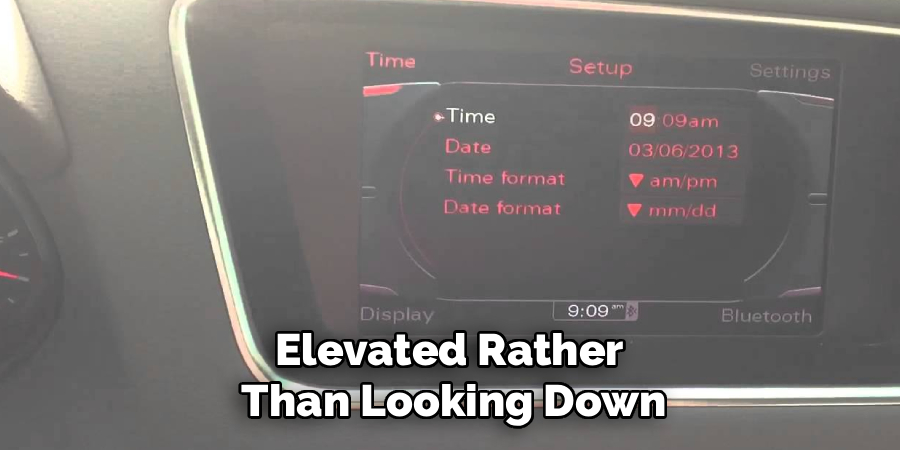
Look for a section labeled “Settings,” “Setup,” or “Vehicle.” The exact wording may change by model year, but the clock options are usually stored under a general system or vehicle settings area rather than the radio or navigation screen.
Step 4: Select The Settings Menu
Once you are in the main menu, enter the settings menu. This area controls many basic functions in the car, including display preferences, measurement units, language, date, and time. Move slowly through the menu so you do not skip past the correct option.
If your Audi A4 has a control knob, rotate it to highlight the option and press down to select it. If your model uses a touchscreen, tap the setting directly. You may see several categories, so look for anything related to system settings, time settings, or date and time settings.
Step 5: Choose Date And Time Settings
Now select the date and time settings. This is the section where you can adjust the hour, minutes, time format, and sometimes the date. Some Audi A4 models also include options for automatic time update, GPS time, or daylight saving time. If automatic time is turned on, the manual time fields may be locked or limited.

If you want full control, you may need to turn off automatic time first. This allows you to make a manual adjustment. Be careful when changing the date as well, because an incorrect date can affect reminders and stored trip information.
Step 6: Make The Manual Time Adjustment
This is the main part of how to change time audi a4 when the clock does not update on its own. Select the hour field first, then adjust it up or down until it matches the correct time. After that, move to the minutes field and set it accurately.
Use the control knob, touchscreen, or steering wheel controls based on your car’s setup. If your Audi A4 offers a 12-hour or 24-hour digital display option, choose the format you prefer. Take your time here, because one small mistake can leave the clock off by an hour.
Step 7: Check Automatic Time And Daylight Saving Options
After setting the clock, review the automatic time update and daylight saving time options. In some Audi A4 models, automatic time uses GPS data or connected services to keep the clock accurate. This can be helpful if you travel often or do not want to adjust the clock twice a year.

However, automatic settings may not always match your local time zone right away. If the time changes again after you set it manually, return to this menu and check whether automatic updates are enabled. Choose the option that works best for your driving habits.
Step 8: Save The Setting And Confirm The Display
Once the time looks correct, save the setting if your Audi A4 asks for confirmation. Some MMI systems save changes automatically, while others may require you to press a back button, confirm button, or control knob. Do not turn the car off too quickly if the system is still processing the change.
Return to the main screen and check the clock on both the infotainment screen and dashboard display. If both show the correct time, the adjustment is complete. If one display still looks wrong, restart the system or recheck the date and time settings.
Frequently Asked Question
Why Is The Time Wrong On My Audi A4?
The time may be wrong because of daylight saving time, a weak GPS signal, a disconnected battery, or an automatic time setting that is not matching your region. It can also happen after software updates or service work. Check whether automatic time update is enabled, then confirm your time zone and daylight saving settings. If needed, switch to manual adjustment and set the clock yourself.
Can My Audi A4 Update The Time Automatically?
Many Audi A4 models can update the time automatically through GPS, the MMI system, or connected vehicle settings. This depends on the model year and available features. If automatic time is active, the car may adjust the clock without your input. If the displayed time is still wrong, check the time zone, daylight saving time option, and whether automatic updates are supported in your vehicle.
Where Are The Clock Settings In An Audi A4?
Clock settings are usually found inside the infotainment system under the settings menu. Depending on your model year, you may see them listed under “System,” “Vehicle,” or “Date And Time.” Older Audi A4 models may use the center console control knob, while newer models may use a touchscreen. If you cannot find the menu, your owner’s manual can show the exact path for your MMI version.
Why Can’t I Change The Time Manually?
If you cannot change the time manually, automatic time update may be turned on. When this feature is active, the car may block manual changes because it is using GPS or system data. Go into the date and time settings and look for an automatic time option. Turn it off if you want to set the clock yourself, then adjust the hour and minutes manually.
Does Changing The Time Affect Other Audi A4 Settings?
Changing the time usually does not affect major vehicle settings, but it can influence time-based features. Navigation arrival estimates, trip logs, service reminders, and displayed timestamps may rely on the clock being correct. If the date is also wrong, some reminders may appear at the wrong time. After adjusting the clock, check the dashboard display and infotainment screen to make sure everything looks accurate.
Conclusion
Changing the clock in an Audi A4 is a simple task once you understand the MMI system and know where the date and time settings are located. Start by turning on the ignition, opening the main menu, entering the settings area, and adjusting the time manually or through automatic time update. Always confirm the dashboard display before you finish.
If your clock is wrong after a battery reset, daylight saving time change, or time zone shift, do not worry. Use this guide to practice how to change time audi a4, and you will be able to update the clock with confidence whenever needed.

About
Ora Hayes is a distinguished figure in the world of DIY Thecarfixes, with over a decade of expertise in automotive diagnostics and high-performance maintenance. Her professional focus lies in merging mechanical precision with modern digital tools, fostering repair solutions that are both cost-effective and highly reliable. As the author of Thecarfixes, Ora Hayes delves into the art and science of automotive restoration, inspiring car owners and hobbyist mechanics alike.
Education
RMIT University (Melbourne, Australia) Associate Degree in Automotive Engineering — Focus on vehicle dynamics, industry-driven repair protocols, and advanced diagnostics. Gained hands-on experience with traditional mechanical tools and modern ECU remapping software.
Nottingham Trent University (United Kingdom) Bachelor’s in Mechanical Design and Automotive Engineering (Honors) — Specialized in automotive systems with a focus on blending technical engineering with everyday usability. Participated in industry projects, working with leading automotive manufacturers to gain real-world insights into vehicle longevity.
Publications and Impact
In Thecarfixes, Ora Hayes shares her insights on troubleshooting complex engine issues, material durability, and strategies for efficient garage setups. Her writing bridges the gap between professional mechanic knowledge and the home enthusiast’s needs, making it a must-read for both everyday drivers and seasoned gearheads.