Pairing your smartphone with your SUV can make every drive easier, safer, and more enjoyable. once your phone is connected, you can make hands-free calls, stream music, hear navigation directions, send voice-assisted messages, and use supported apps through the infotainment screen. if you are learning how to connect phone to ford explorer, the process is usually simple, but the exact steps can vary based on your phone, model year, and Ford SYNC version.
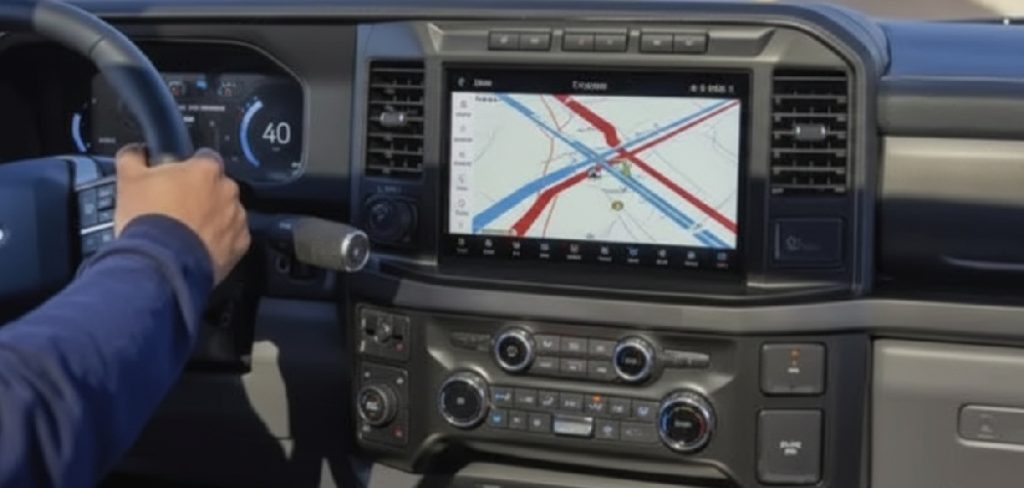
Most Ford Explorer models use Bluetooth, Apple CarPlay, Android Auto, or a mix of these systems. older models may rely mainly on Bluetooth, while newer versions may support wired or wireless smartphone projection. this guide walks you through the full process in a beginner-friendly way so you can pair your device, confirm permissions, fix common setup issues, and get the most from your connected driving features.
Why Connecting Your Phone To A Ford Explorer Matters
Connecting your phone helps you stay focused while driving. instead of holding your device, you can use voice commands, steering wheel controls, and the touchscreen to manage calls, music, maps, and messages.
It also improves convenience. your contacts, favorite playlists, podcasts, and navigation apps become easier to access from the driver’s seat. if your Explorer supports Apple CarPlay or Android Auto, the screen can show a familiar phone-style interface designed for safer use on the road.
A proper connection also reduces distractions. when your phone works smoothly with Ford SYNC, you spend less time tapping your screen and more time paying attention to traffic.
Step-By-Step Guide To Connecting Your Phone
Step 1: Park Safely And Turn On The Vehicle
Start by parking your Ford Explorer in a safe location. place the vehicle in park and keep your foot off the accelerator. phone pairing only takes a few minutes, but it is still best to complete the process while the vehicle is not moving.
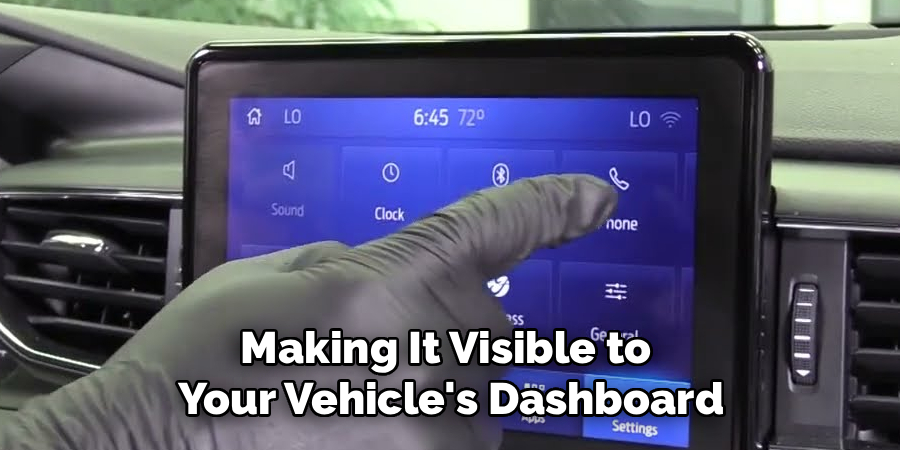
Turn on the ignition or start the engine so the infotainment system has steady power. wait for the touchscreen to fully load before touching any menus. if your system starts slowly, give it a moment. trying to pair before the screen is ready can cause delays or failed connection attempts.
Step 2: Ford Explorer Using Bluetooth
Open the settings app on your phone and turn on Bluetooth. keep that screen open so your phone remains visible and ready to connect. on the Ford touchscreen, look for the phone, Bluetooth, or settings menu. the exact wording depends on your SYNC version.
Choose the option to add a phone or pair a device. your Explorer should begin searching for nearby phones. when your phone name appears on the vehicle screen, select it. if the vehicle name appears on your phone instead, tap it there and wait for the pairing request.
Step 3: Confirm The Pairing Code
After you select the device, a pairing code should appear on both the phone and the Ford screen. compare the numbers carefully. if they match, confirm the pairing on both devices.
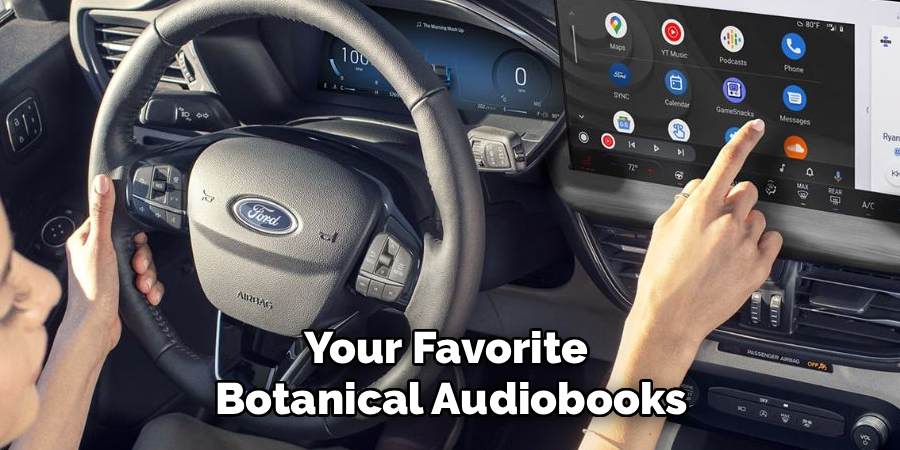
This step protects your phone from connecting to the wrong vehicle or another nearby Bluetooth device. if the numbers do not match, cancel the request and start again. once approved, the system may take a few seconds to finish pairing.
Do not close the phone settings too quickly. some phones need extra permission prompts before calls, contacts, and media will work correctly.
Step 4: Allow Contacts, Calls, And Audio Permissions
Your phone may ask whether you want to allow contact sharing, call history access, text message access, or media audio. these permissions help the Explorer display names, make hands-free calls, and play audio through the speakers.
If you only allow limited access, some features may not work. for example, calls may connect, but contact names may not appear. music may play, but message alerts may stay blocked.
Choose the permissions that match your comfort level. if you change your mind later, you can adjust them in your phone’s Bluetooth settings or remove the device and pair it again.
Step 5: Apple CarPlay Or Android Auto
If your Explorer supports Apple CarPlay or Android Auto, connect your phone with a high-quality USB cable or use wireless setup if available. for wired setup, plug the cable into the correct USB data port, not a charge-only port.
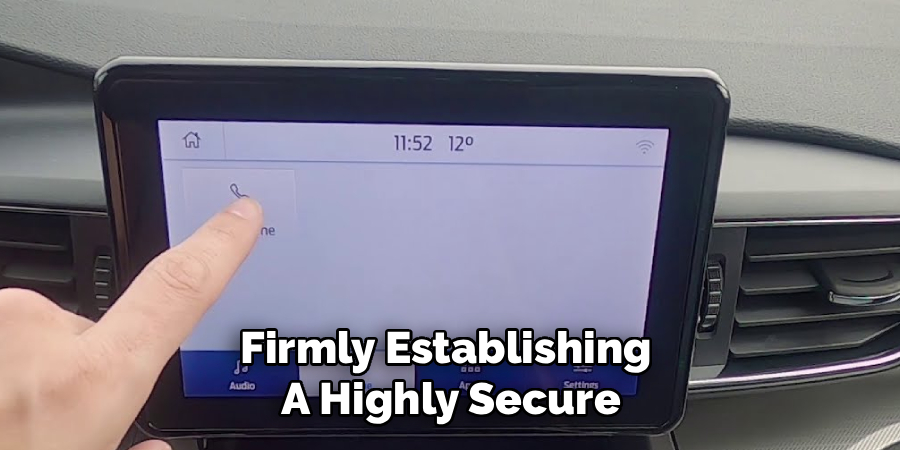
Your phone may ask for permission to use CarPlay or Android Auto while locked. approve the prompt if you want the system to launch automatically. the Ford screen may also ask you to enable smartphone projection.
Once accepted, the touchscreen should show compatible apps such as maps, phone, messages, music, and podcasts in a simplified driving-friendly layout.
Step 6: Set Your Phone As The Favorite Device
If more than one phone is paired, your Explorer may connect to the last used device or the strongest nearby signal. this can be annoying if several family members drive the same vehicle.
Open the phone or Bluetooth settings on the Ford screen and look for device management. select your phone and set it as the preferred or favorite device if that option is available.
This helps the system choose your phone first when you enter the vehicle. if another phone keeps connecting, disconnect it manually, turn off its Bluetooth, or adjust the priority order in the vehicle settings.
Step 7: Test Calls, Music, And Voice Commands
After pairing, test the main features before you start driving. make a quick hands-free call, play a song, and check that the sound comes through the vehicle speakers. adjust the volume with the steering wheel or dash controls.
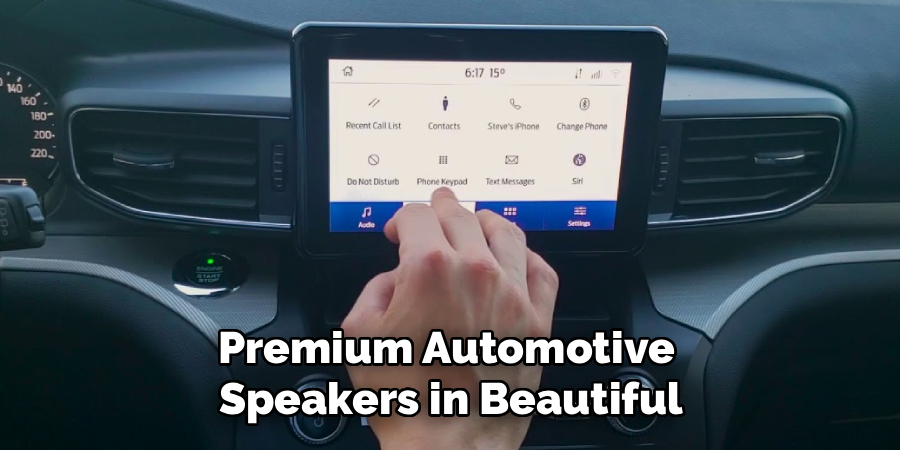
Try a voice command as well. depending on your system, you may use Ford voice control, Siri, or Google Assistant. press the voice button and ask for directions, call a contact, or play music.
Testing now helps you find small problems early. if audio only plays from the phone, check the audio source and select Bluetooth, CarPlay, or Android Auto.
Step 8: Troubleshoot If The Connection Fails
If your phone does not connect, start with simple fixes. turn Bluetooth off and back on, restart your phone, and restart the vehicle’s infotainment system. also make sure your phone software is updated.
If pairing still fails, delete the Ford connection from your phone and remove your phone from the Explorer’s device list. then start the pairing process again from the beginning.
For cable-based CarPlay or Android Auto, try another cable and clean the phone’s charging port gently. if wireless features fail, check that Wi-Fi and Bluetooth are both enabled because many systems need both to connect.
Frequently Asked Questions
Can I Connect More Than One Phone To A Ford Explorer?
Yes, most Ford Explorer infotainment systems can remember multiple paired phones. however, only one phone is usually active for calls and media at a time. if two paired phones are inside the vehicle, the system may connect to the favorite phone, the most recent phone, or the first one it detects. you can manage this in the Bluetooth or phone settings menu and choose which device should connect first.
Why Is My Phone Paired But Not Playing Music?
This usually happens when the wrong audio source is selected or media audio permission is disabled. open the audio menu on the Ford screen and choose Bluetooth, Apple CarPlay, or Android Auto as the source. then check your phone’s Bluetooth settings and confirm media audio is allowed for the vehicle connection. if the issue continues, delete the pairing from both devices and reconnect them from scratch.
Does Ford Explorer Support Wireless Apple CarPlay?
Some newer Ford Explorer models support wireless Apple CarPlay, but older models may require a USB cable. support depends on the model year, trim, and SYNC version. if wireless CarPlay is available, your phone will usually need both Bluetooth and Wi-Fi turned on. if the wireless option does not appear, try connecting with a USB cable first, then follow any prompts to enable wireless use for future drives.
Why Does My Phone Disconnect From Ford SYNC?
Random disconnections can happen because of weak Bluetooth signal, outdated phone software, old SYNC software, low battery mode, or interference from other paired devices. start by updating your phone and restarting both systems. then remove unused phones from the vehicle’s device list. if the problem happens only with a cable, replace the cable with a certified data cable because damaged cords often cause unstable CarPlay or Android Auto connections.
Can I Use Navigation Apps On The Explorer Screen?
Yes, if your Explorer supports Apple CarPlay or Android Auto, you can use supported navigation apps on the touchscreen. apps such as Apple Maps, Google Maps, and Waze may appear once your phone is connected. the display is designed to be easier to use while driving, but you should still set your destination before moving. voice commands are the safest way to make changes on the road.
Conclusion
Connecting your smartphone to a Ford Explorer is a simple upgrade that makes driving more convenient and less distracting. start by parking safely, turning on Bluetooth, pairing your phone, confirming permissions, and testing calls and audio. if your model supports Apple CarPlay or Android Auto, you can also use maps, music, messages, and voice tools through the touchscreen.
If something does not work the first time, restart both systems, remove old pairings, check permissions, and try again. now that you know how to connect phone to ford explorer, take a few minutes to set it up before your next drive and enjoy a smoother, safer in-car experience.

About
Ora Hayes is a distinguished figure in the world of DIY Thecarfixes, with over a decade of expertise in automotive diagnostics and high-performance maintenance. Her professional focus lies in merging mechanical precision with modern digital tools, fostering repair solutions that are both cost-effective and highly reliable. As the author of Thecarfixes, Ora Hayes delves into the art and science of automotive restoration, inspiring car owners and hobbyist mechanics alike.
Education
RMIT University (Melbourne, Australia) Associate Degree in Automotive Engineering — Focus on vehicle dynamics, industry-driven repair protocols, and advanced diagnostics. Gained hands-on experience with traditional mechanical tools and modern ECU remapping software.
Nottingham Trent University (United Kingdom) Bachelor’s in Mechanical Design and Automotive Engineering (Honors) — Specialized in automotive systems with a focus on blending technical engineering with everyday usability. Participated in industry projects, working with leading automotive manufacturers to gain real-world insights into vehicle longevity.
Publications and Impact
In Thecarfixes, Ora Hayes shares her insights on troubleshooting complex engine issues, material durability, and strategies for efficient garage setups. Her writing bridges the gap between professional mechanic knowledge and the home enthusiast’s needs, making it a must-read for both everyday drivers and seasoned gearheads.